The Goal: Use the Body settings in the Email Designer to define the global defaults for an email template — including template width, background color, default fonts, and link color.
Before You Begin:
- You need access to Marketing & Communication and permission to manage Email Designer templates.
- Have an Email Designer template open, or be in the process of creating an Email Designer template from scratch.
- NOTE: Email Designer templates are only deliverable from the Email Designer tab and are not available to select anywhere else in GrowthZone. You can however use them for/in Marketing Automation workflows.
- Unlayer is the provider of the interface used for Email Designer newsletters. Here are their recommendations as to content width, etc.
Microlearning Overview
*NOTE: This video was recorded using the previous interface. We will be updating videos as quickly as possible.
Step-by-Step Instructions
- Go to Marketing & Communication, Communication section, click Email Designer, and open the template you want to configure (or start creating one from scratch).
-
In the Template window, click the Body tab to the right of the editing area.
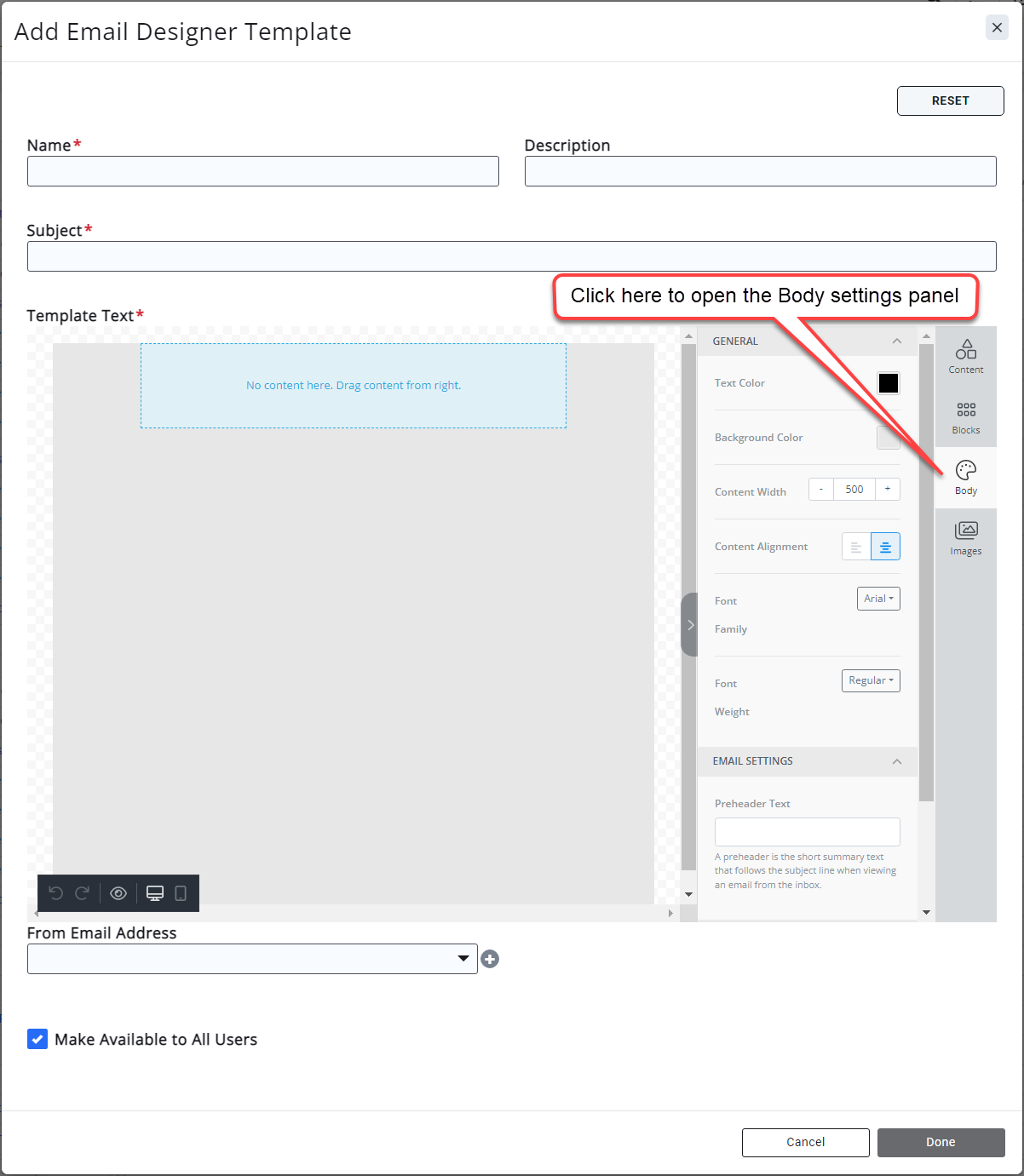
- Using the Body option, define the global settings for your template — the width of the template, the background color, default fonts to be used, link color, and more.
- Click Save to finalize your template defaults.
Common Pitfalls
- Setting a content width that's too wide: Email clients can clip or distort oversized templates. Follow Unlayer's recommended content width to keep your newsletter rendering correctly across inboxes.