What this does: Saves the applicant's card when they submit a membership application, and charges it automatically when staff approve the application.
Applies to: GrowthZone associations using GrowthZone Pay or National Association of REALTORS® (NAR) e-commerce, with membership application version 2. You need staff access to Memberships settings.
Before you start: Turn off Automatically Approve Applications first. You can't use both settings together.
Time needed: About 5 minutes.
Why the option is grayed out: When Automatically Approve Applications is selected, you can't select Capture Payment Profile and Charge on Approval.
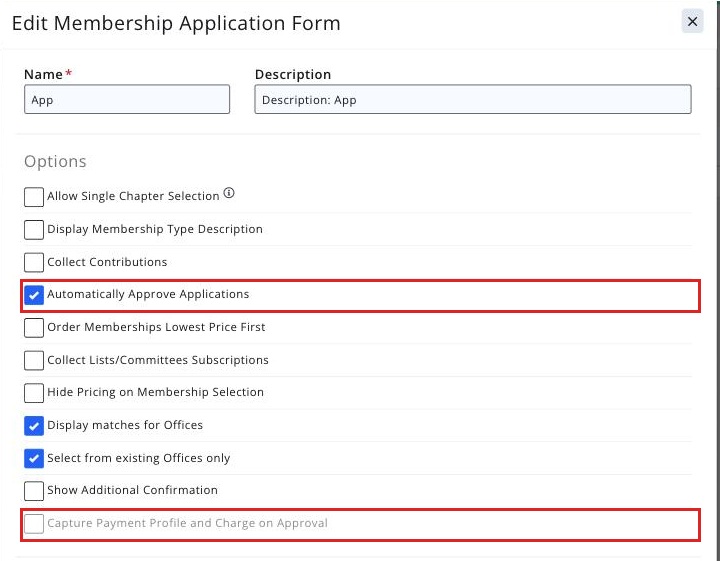
Turn on charge on approval
- Enable the Capture Payment Profile and Charge on Approval option on your Membership Application(s).
- See View/Create your Membership Application Form for further information on setting up your Membership Application Form(s).
How It Works
- Enable the Capture Payment Profile and Charge on Approval option on the membership application.
- When an applicant completes the application, they are required to store credit card information.
- Cards are verified before the application is submitted, and a confirmation is shown to the user.
- Cards are saved as a payment profile on the applicant’s contact record.
- As a staff member, you can review the application and make any needed adjustments to the invoice.
- When the application is approved, the credit card will be charged automatically.
Common pitfalls
- Conflict with Automatically Approve Applications: These two settings are mutually exclusive. If Automatically Approve Applications is enabled, you cannot enable Capture Payment Profile and Charge on Approval.
- Application not version 2: This feature only works with version 2 applications. Verify the application version before enabling this setting.