The Goal: Send Info Hub log-in instructions to an individual contact and set the access level that controls what they can see and do once they sign in.
Before You Begin:
- The individual must already be set up in the database.
- You must be on the individual's page — not the business page — to follow these instructions.
- An email address must be on the individual's record so log-in instructions can be delivered.
Step-by-Step Instructions
On the individual's page, click the
menu in the top right of the screen and choose User Login.
- On the Edit User Access screen, select the access level you wish to assign to this individual.
- In the User Access level drop-down at the top of the dialog box, you are selecting the access level that the user has if they are not associated to an organization. By default, this will be set to the access level you have set in the Log-in settings. Additionally, if you offer individual memberships, this is the access level the individual will have.
- The User Access level selected in the Access Level with Associated Organizations section is the permission that the user will have as part of the associated organization. Users may be associated with multiple organizations and have different permission levels for each. NOTE: The access level provided here must be equal to or greater than the access level set at the user level. If this user should not have access to the organization information, do not select an access level. When the user logs into the Info Hub, the system will grant them the higher of the two access levels.
- Complete the Login Info fields:
- Username — this is the user name for the individual. If no username is listed, the individual has never logged in.
- Password Reset Email — this field will be populated with the email address entered when the individual was added to the system. You may change this if needed.
- Send Login Instructions Email — click this check-box to send an email to the individual, which will provide the instructions to set up their login credentials.
Set Temporary Password — if the user already has log-in credentials, but has forgotten their password and wishes you to set a temporary password, enter the password here. The user would then be able to change their password in the Info Hub.
- Click Done.
An automated email (example shown below) will be sent to the individual.
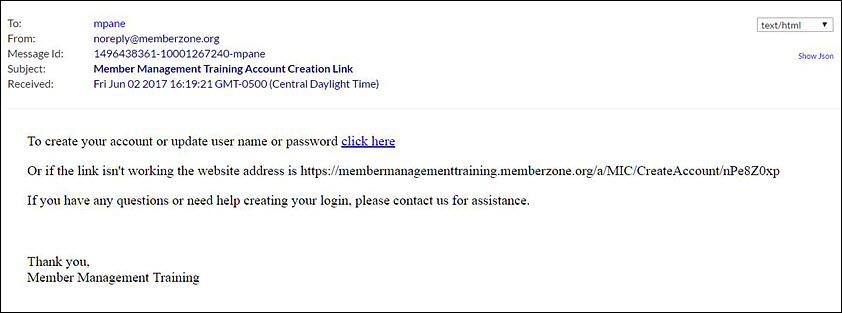
The individual will be able to step through setting up access to the Info Hub from this email. You will be able to review which users have access to the Info Hub by generating the User Account Report.
Common Pitfalls
- Working from the business page: These steps only apply to an individual. If you start from the organization's page, you won't see the individual User Login option — open the individual's page first.
- Associated-organization access too low: The access level set under Access Level with Associated Organizations must be equal to or greater than the user-level access, or the organization permissions won't apply as expected.