The Goal: Add a late fee to all overdue or unpaid membership invoices currently displayed in the filtered list in a single bulk action.
Before You Begin:
- A fee item of type Late fee must already be set up. When using accrual accounting, set the goods/service recognition to On Invoice Date.
- The date of the fee will reflect the current date, NOT the invoice date.
- IMPORTANT: The late fee will be applied to all invoices displayed on the Unpaid page as you have it filtered. Use filtering carefully to target only the intended members.
Step-by-Step Instructions
- Go to Finance, Billing section, click Unpaid.
- Filter the invoices as needed by clicking Show Only or Customized Results. By filtering you are managing the list of members to which you wish to add a late fee.
The Unpaid tab with a “Days Overdue” filter applied, showing 116 invoices. - Click the Add Late Fees button.
- In the Add Late Fees/Suspend Member window, select your preferred late fee item. Update the Description and Amount if needed. IMPORTANT: The fee will be applied to all invoices displayed on the Unpaid page, as you have it filtered.
Adding late fees to the 116 invoices filtered to display in the Unpaid tab. - Click Apply Changes to save.
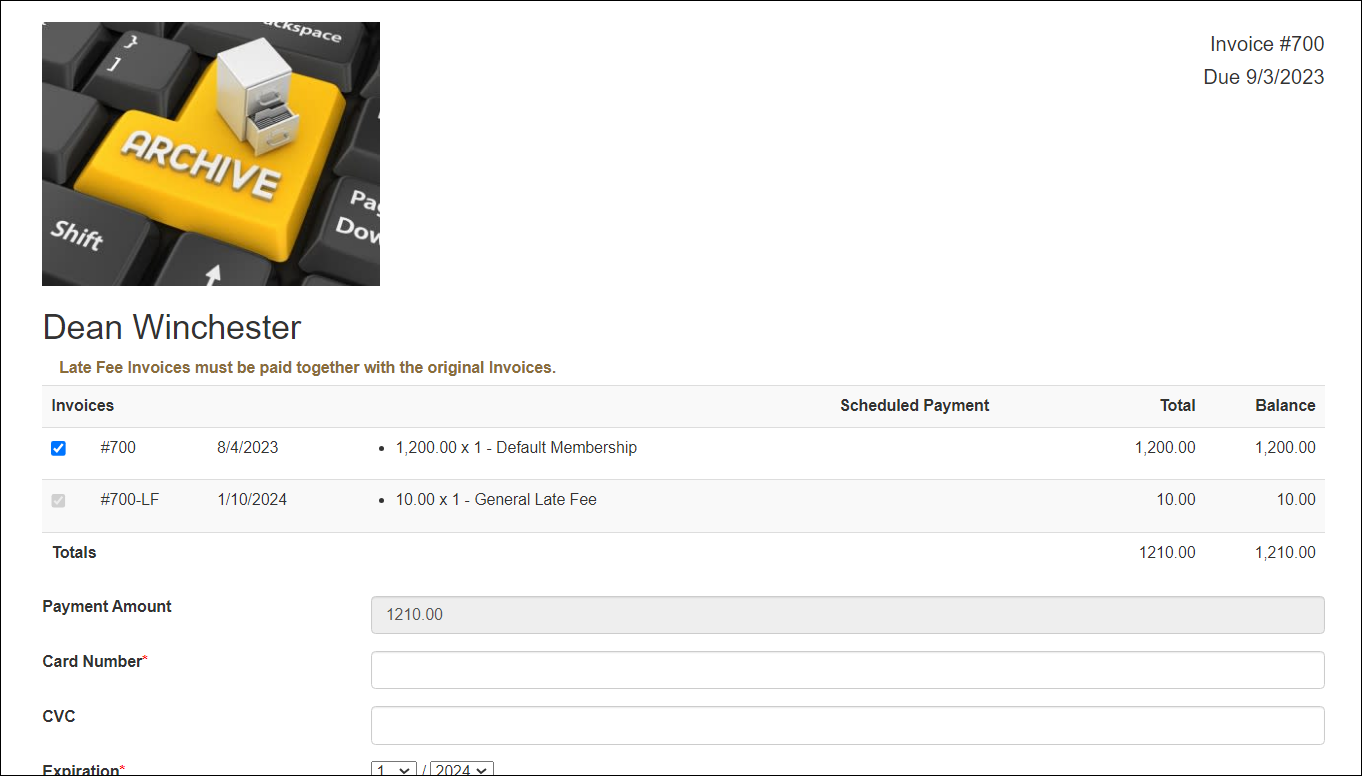
Result GrowthZone will create new invoices with the late fee on them. The new invoices will have -LF appended to them, and will have the date the late fee was applied as the transaction date. When the member goes to pay the membership invoice online, the late fee invoice is included and cannot be omitted. If the member accesses the invoice via the Info Hub, they will see: “Late Fee Invoices must be paid together with the original Invoices.”
Common Pitfalls
- Applying fees to too many invoices: The bulk action applies to every invoice currently visible after filtering. Always review and confirm your filter results before clicking Apply Changes.
- Wrong fee item type: Only items set up as type Late fee appear in the selection list.