


Managing Lists/Committees

Dec 09, 2025
 3599
3599
|
|
See Managing Lists/Committees in Action! |

- Click Lists/Committees in the Navigation Panel. A list of all lists/committees configured in your database will be displayed.
- Click the hyperlink for the list/committee you wish to work with. The List/Committee screen provides five tabs to manage the list/committee: General, Contacts, Communications, Events, Files, and Import.
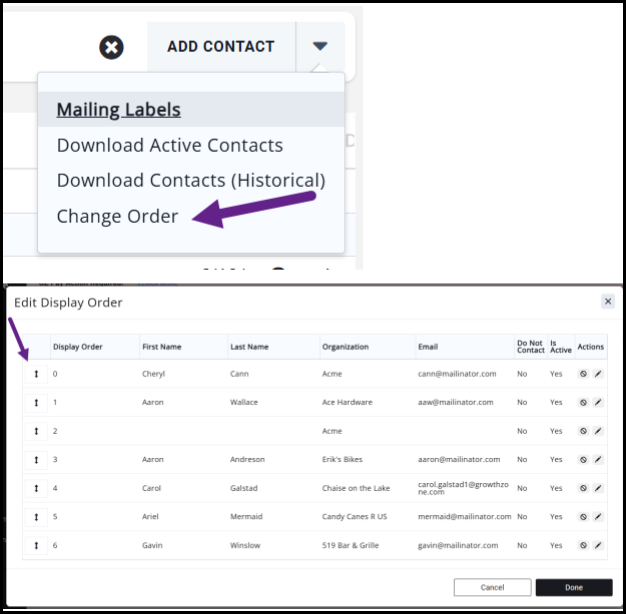
- To order your List/Committee members, you can access the Change Order option in the menu. The reason you can order your List/Committee members is to display the order as desired on any public lists/committee pages. Drag and drop the contacts to the desired order. The numbers will automatically adjust to your designated order.
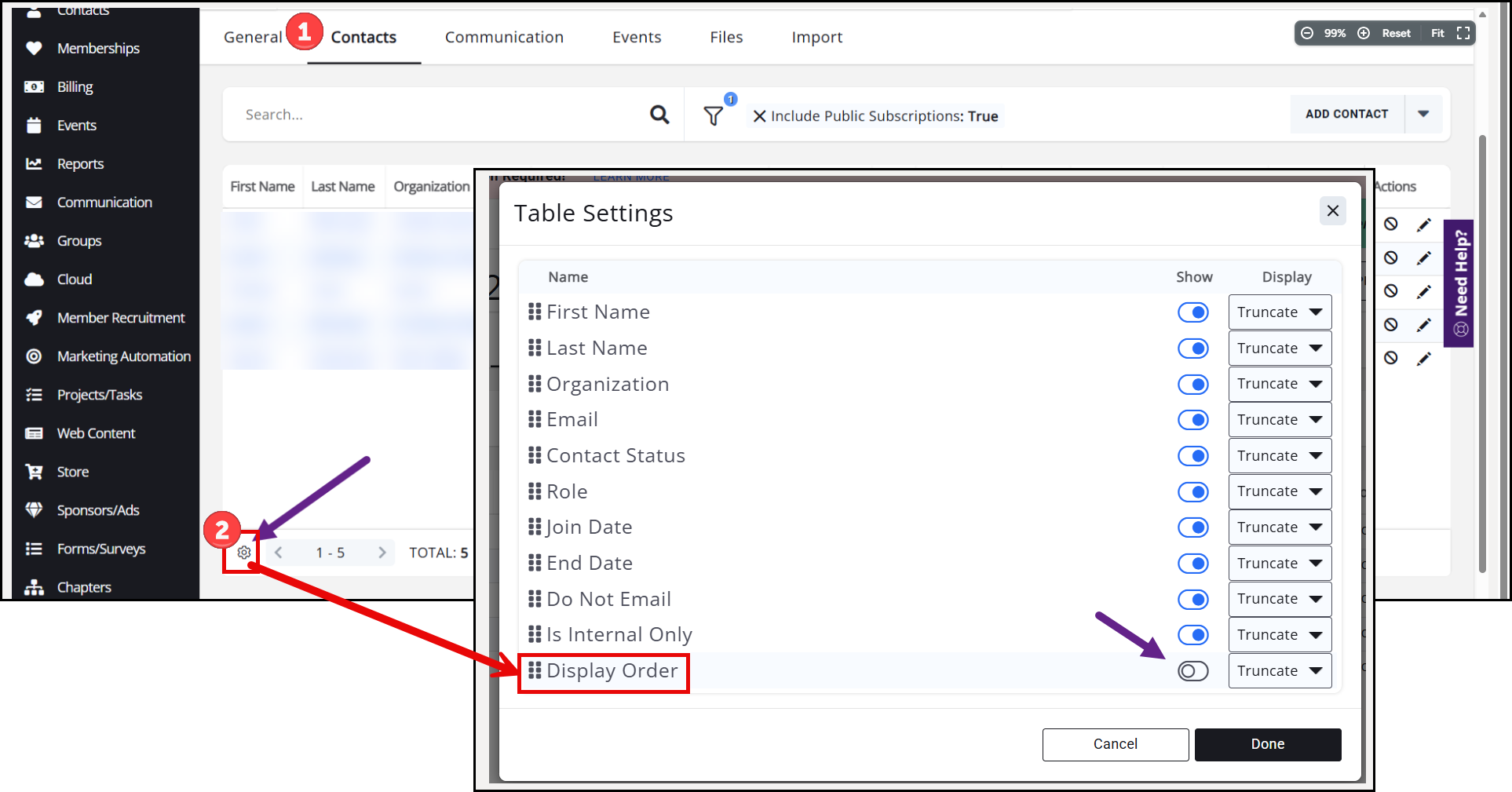
 TIP: You have an optional column to enable on this table called Display Order. This column means you don't have to click into each contact to see their selected order. Turn this option on by going to the Setup gear icon in the bottom left corner of the Contacts tab.
- Groups with more than 255 contacts will NOT see the Change Order option. There is currently a limitation on the number of contacts you can order.

