



 497
497
Before you can use the app, you need to configure a payment gateway for payments collected via the app and specify which fee items you want to collect payments for. This article details how to select a default payment gateway for your Point of Sale app.
 To order a Card Reader for your GZ Pay App, please use this link:
View the following video for a GrowthZone Pay App Overview:
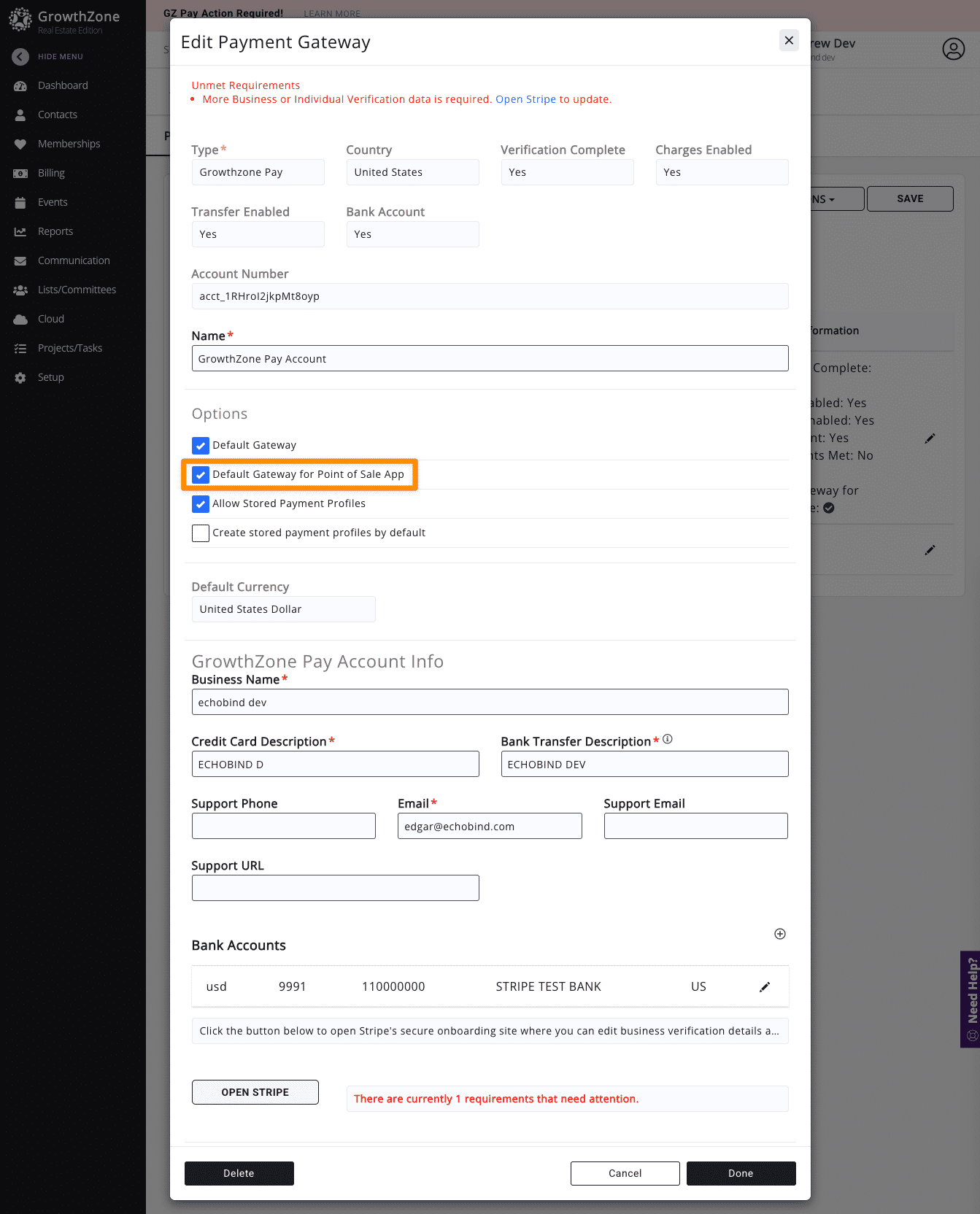
Setting a Default Payment Gateway
The app collects payments using a single GZ Pay gateway. You can change the gateway the app uses as often as you’d like.
To set a payment gateway for use in the app:
- Go to Setup → Finance → Payment Gateways
- Click on the pencil icon of the payment gateway you would like to use in the app.
- Check the Default Gateway for Point of Sale App checkbox.
- Click Done to save your changes.
Related Articles
Order Card Readers for GrowthZone Pay App
GrowthZone Pay App: Configure the App
GrowthZone Pay App: Configure your Fee Item(s)
GrowthZone Pay App: Configure your Default Contact
GrowthZone Pay App: Accepting Payments
GrowthZone Pay App: Paying Open Invoices

