



 462
462
Before you can use the app, you need to configure a payment gateway to use for payments collected via the app, and which fee items you want to collect payments for in the app. This article details how to select a set of fee items for use in your Point of Sale app.
 To order a Card Reader for your GZ Pay App, please use this link:
Configuring Fee Items
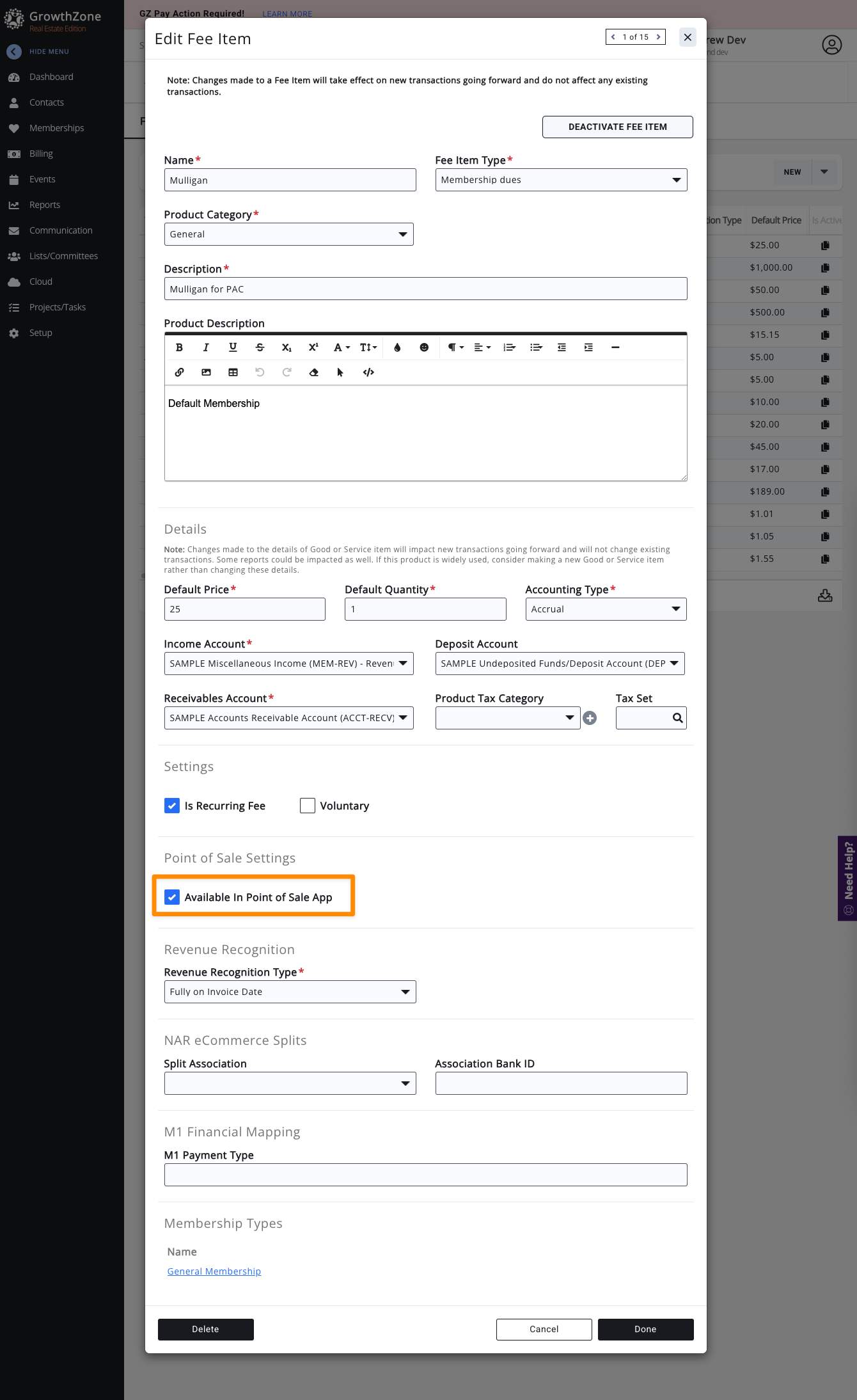
Any Fee Item can be used in the app. You can adjust the available Fee Items at any time. You may want to disable certain items that association staff sell only before a large event, so volunteers can sell them. To mark a Fee Item for use in the app:
- Go to Setup → Services, Products, and Commerce
- Click on the name of the Fee Item you want to edit.
- Check the Available in Point of Sale App checkbox.
- Click Done to save your changes.
 Important: If you immediately return to the GrowthZone Pay app after making this change, you may need to force quit the app and re-launch it. If no fee items are marked for use in the GrowthZone Pay app, a message with a link to a help page will appear within the app.
Related Articles
Order Card Readers for GrowthZone Pay App
GrowthZone Pay App: Configure the App
GrowthZone Pay App: Configure your Default Contact
GrowthZone Pay App: Configure Your Payment Gateway
GrowthZone Pay App: Accepting Payments
GrowthZone Pay App: Paying Open Invoices

