



 399
399
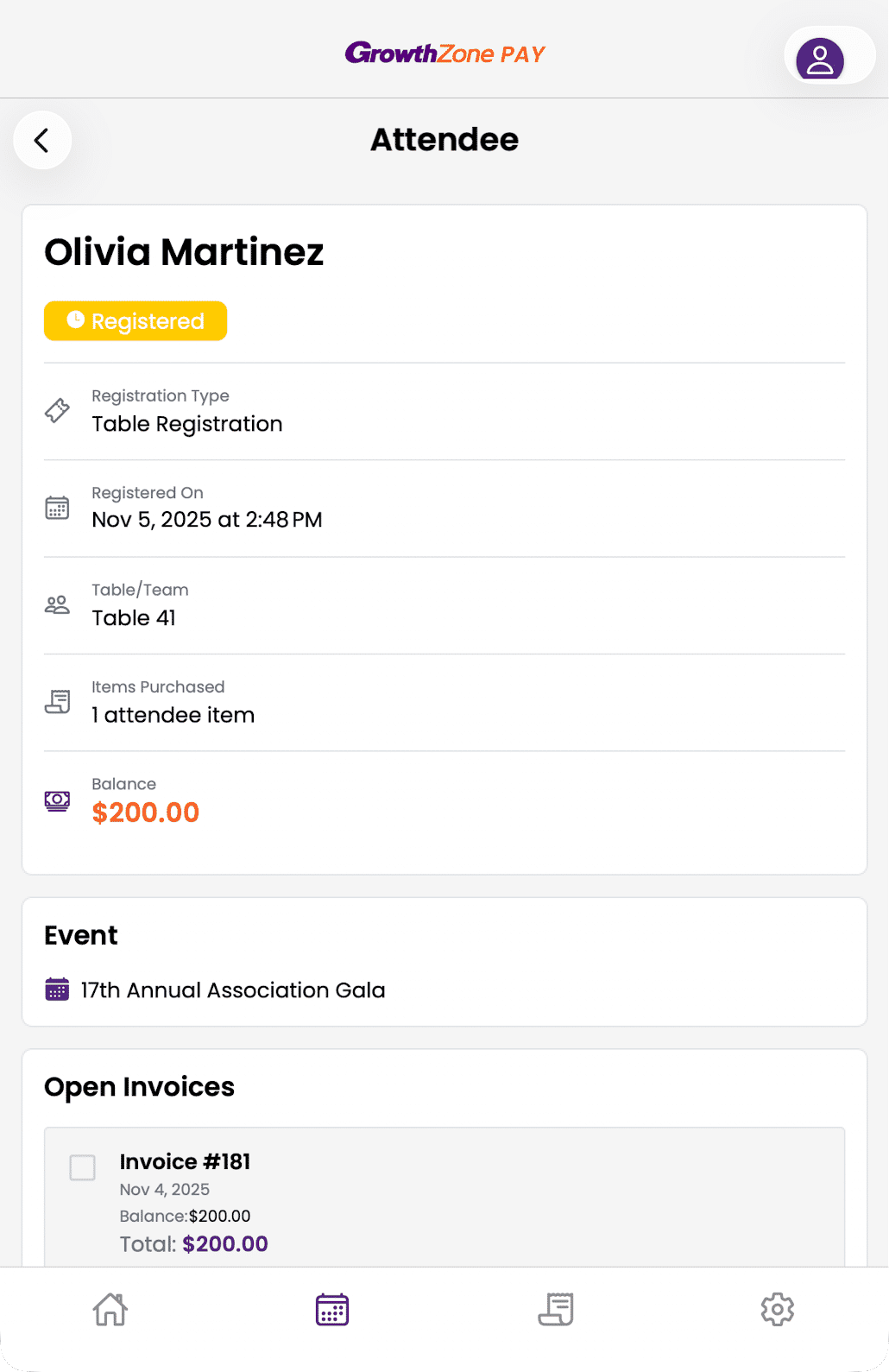
Check in attendees, take registrations at the door, collect payments for open invoices, and even direct them to their team or table. Read on to learn about the powerful new event features in the GZ Pay app!
 To order a Card Reader for your GZ Pay App, please use this link:
Start by tapping on the calendar icon in the bottom navigation of the GZ Pay app. Select your desired event to get started.
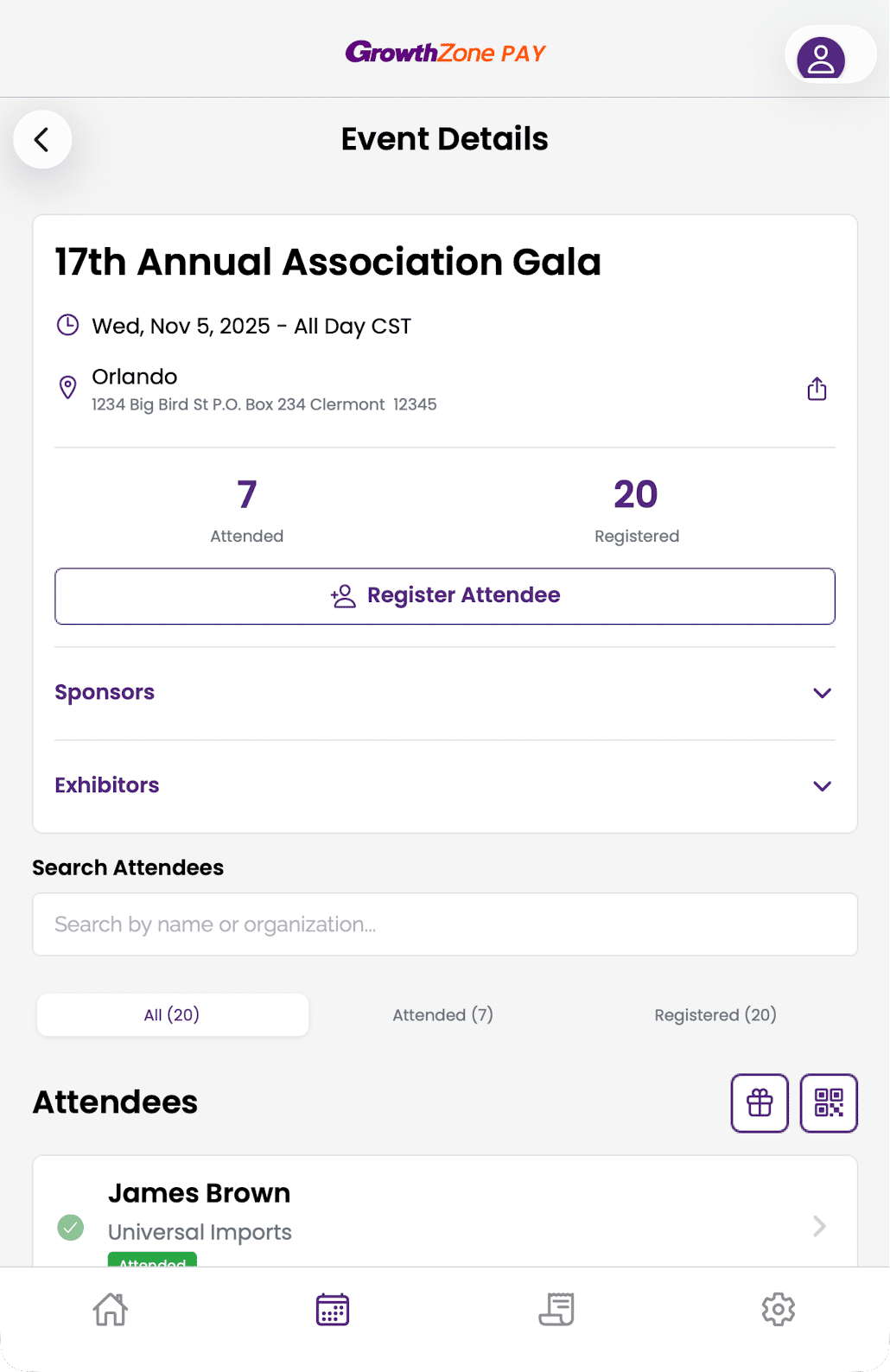
The event overview has quick access to your event details, sponsors, exhibitors, and a full list of attendees. Either scan a QR code, search for your attendees, or select them from the list. The search field stays populated between attendee check-ins, so if you have to check in a number of attendees from the same company, just search for the company and quickly check in each person.
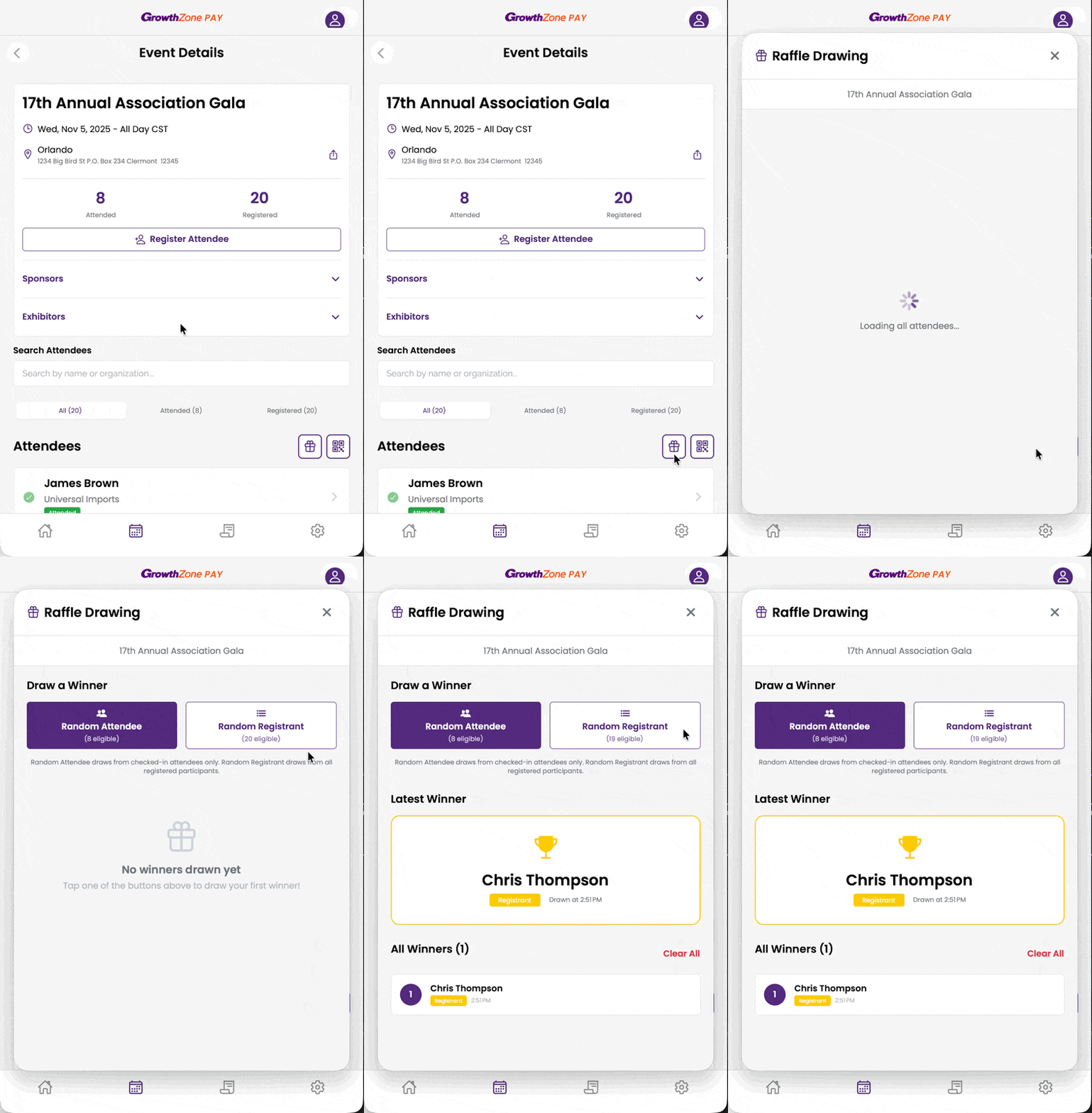
Do you need to select a registrant or attendee for a random drawing? Tap on the Gift icon on the event detail page to open the Random Drawing overlay. Choose whether you want to select a random winner from all registrants or only from those marked as attending the event. Drawn winners appear at the bottom of the overlay for quick reference. Winners are not synced between multiple staff users using the app.
Related Articles
Order Card Readers for GrowthZone Pay App
GrowthZone Pay App: Configure the App
GrowthZone Pay App: Configure your Fee Item(s)
GrowthZone Pay App: Configure your Default Contact
GrowthZone Pay App: Configure Your Payment Gateway
GrowthZone Pay App: Accepting Payments

