


 442
442
Sometimes the easiest way to get a member to pay an open invoice is to see them at an event or around town. Save yourself calls, texts, and emails by collecting payments from those hard-to-contact members through the GZ Pay app.
 To order a Card Reader for your GZ Pay App, please use this link:
Open Invoices
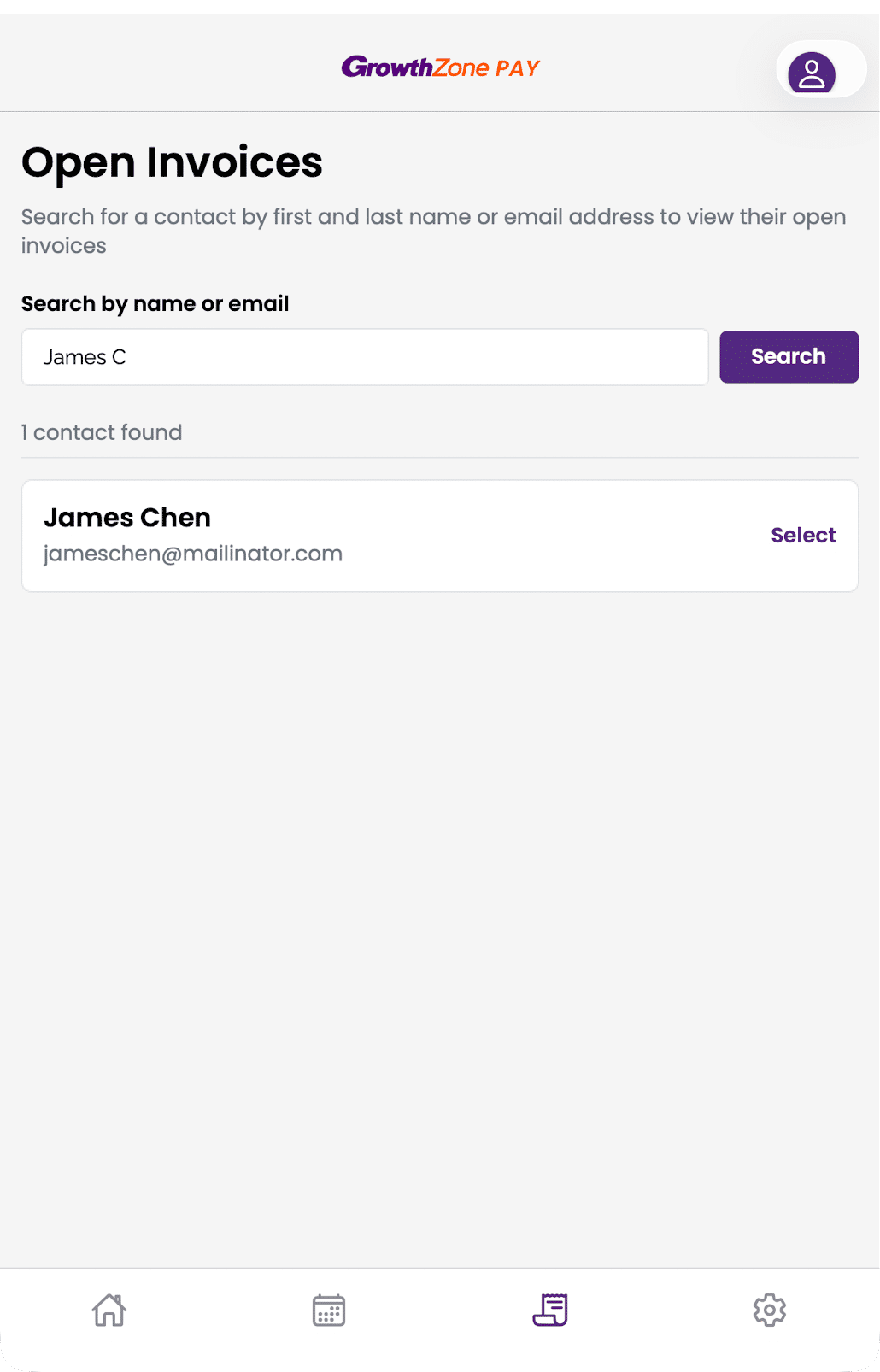
To collect payments for open invoices, tap the invoice icon in the bottom row of navigation icons. From there, enter the name or email address of an individual with an open invoice. Select the individual that you'd like to collect a payment from.
 Invoices for organizations are not currently available in the app. Searching for and paying for these invoices will be added in a future release.
After choosing a contact, the app will show a list of all open invoices. Select one or more invoices to collect a payment for them. Tap Add to Cart to continue collecting a payment.
The cart will show each line item of a selected invoice. For example, if you select 2 invoices, you may see more than 2 items in the cart.

Each line item from a selected invoice will appear as a separate item in the cart. All line items for an invoice must be paid together.
Voluntary items can have their price changed if a member wants to pay more or less than the invoiced amount. Required items cannot have their price changed.
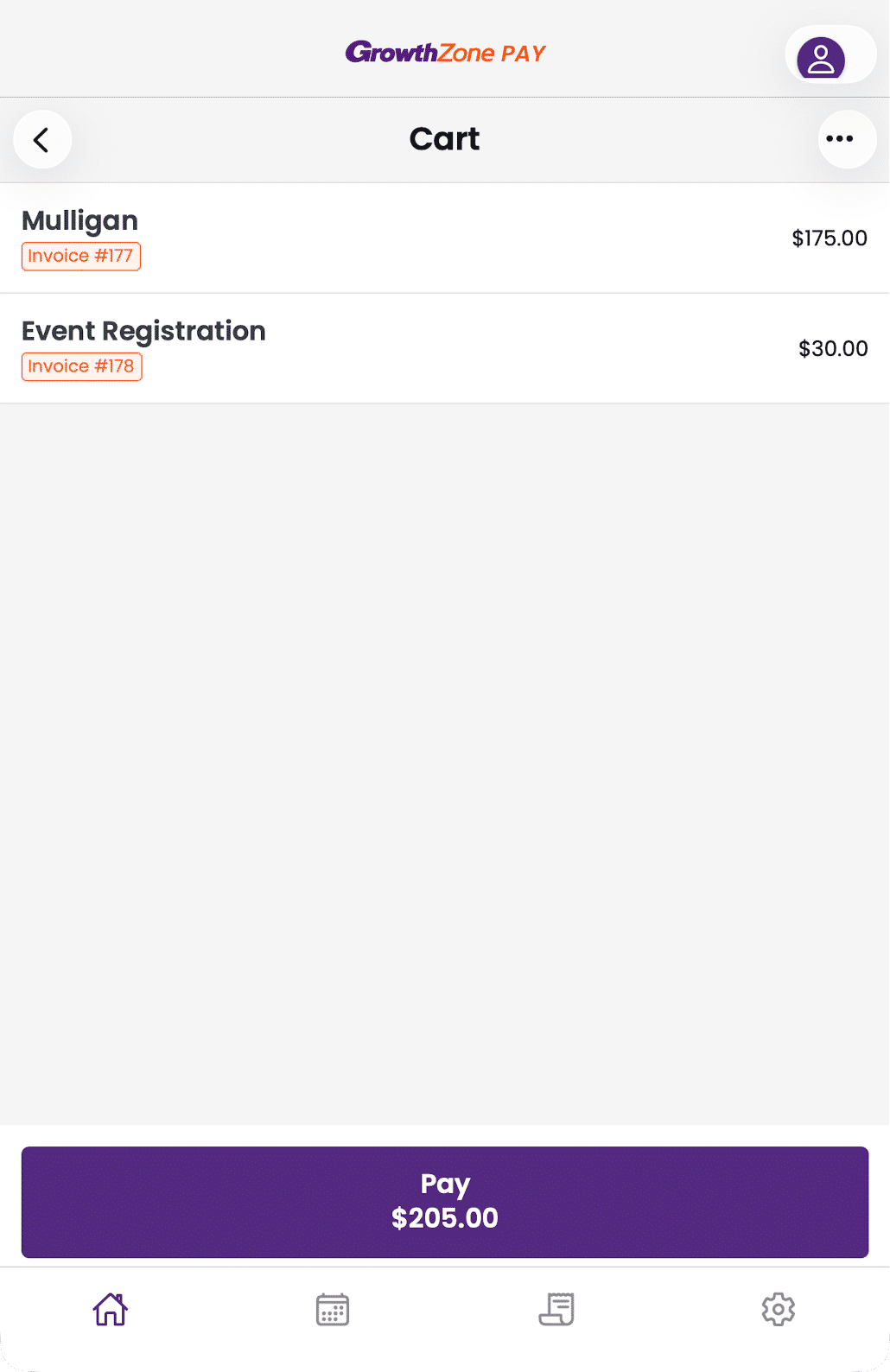
After reviewing the cart and adjusting any voluntary items, tap Pay to complete the payment process via tap-to-pay or the card reader.
Sample Invoice with Multiple Line Items and Voluntary Item
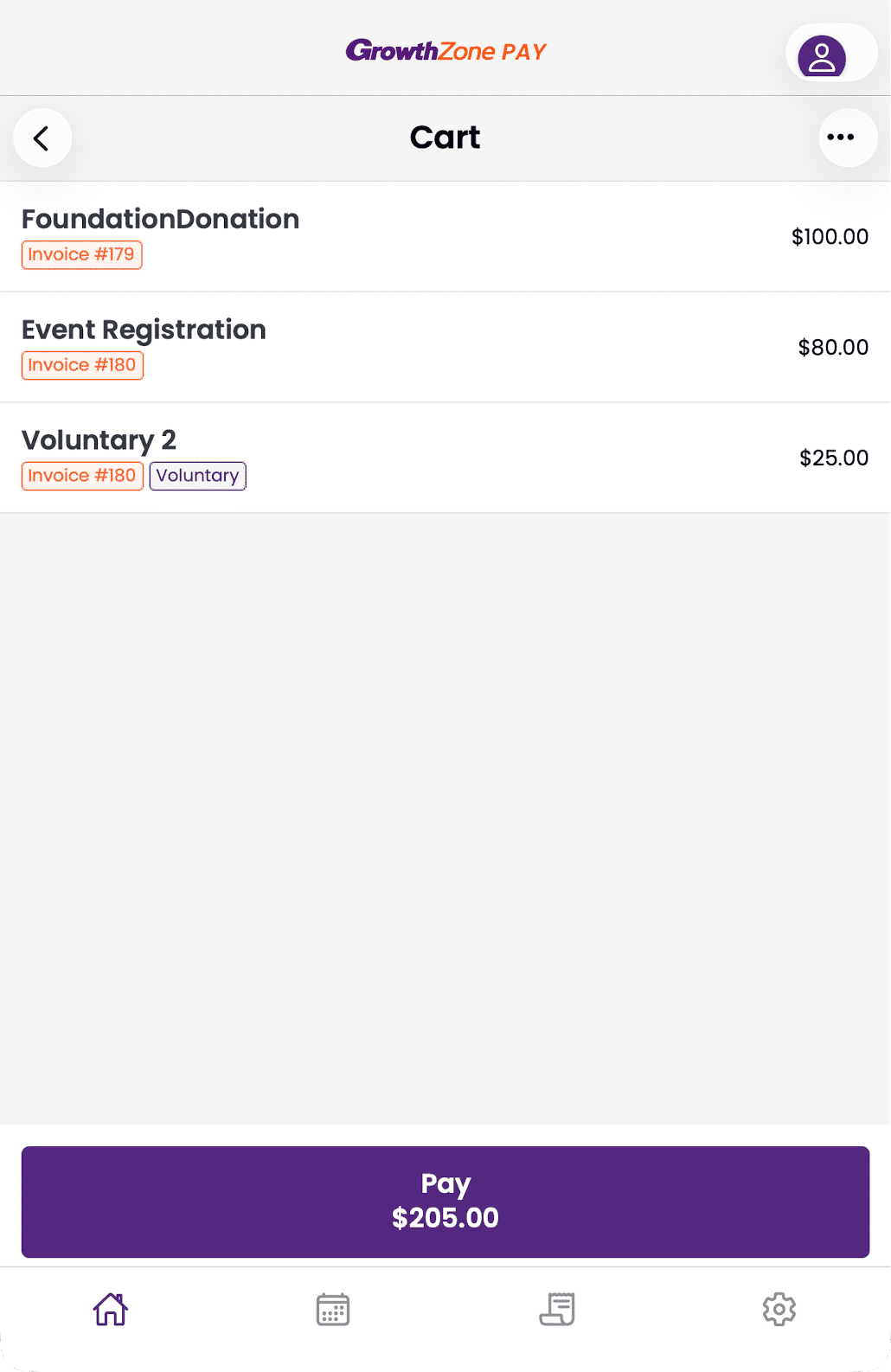
This example shows a cart with 2 invoices, Invoice 179 and Invoice 180. Invoice 180 has 2 line items
Related Articles
Order Card Readers for GrowthZone Pay App
GrowthZone Pay App: Configure the App
GrowthZone Pay App: Configure your Fee Item(s)
GrowthZone Pay App: Configure your Default Contact
GrowthZone Pay App: Configure Your Payment Gateway
GrowthZone Pay App: Accepting Payments

