

 7
7
Downloading the App
The app is available for United States-based GrowthZone customers.
- For iPhones and iPads running iOS 16.7 or later: https://apps.apple.com/us/app/growthzone-pay/id6745103525(opens in a new tab)
- For Android devices: https://play.google.com/store/apps/details?id=com.growthzone_pos.app&pcampaignid=web_share
Initial Database Configuration
Before you can use the app, you need to configure 2 items in your database. You'll need to select a payment gateway to use for payments collected via the app and identify which fee items you want to collect payments for in the app.
Setting a Default Payment Gateway
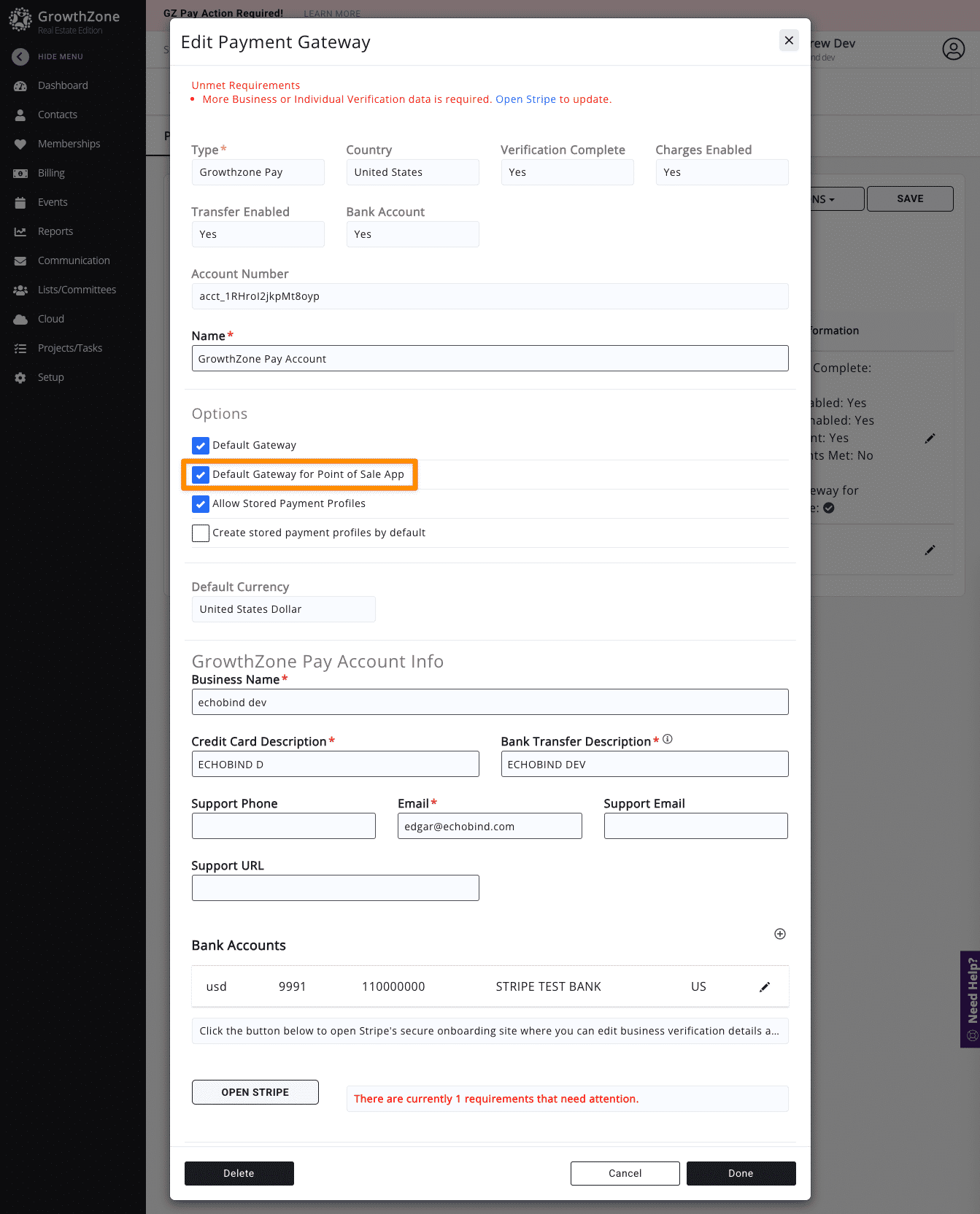
The app collects payments using a single GZ Pay gateway. You can change the gateway the app uses as often as you’d like. To set a payment gateway for use in the app:
-
Go to Setup → Finance → Payment Gateways
-
Click on the pencil icon of the payment gateway you would like to use in the app
-
Check the Default Gateway for Point of Sale App checkbox
-
Click Done to save your changes
Configuring Fee Items
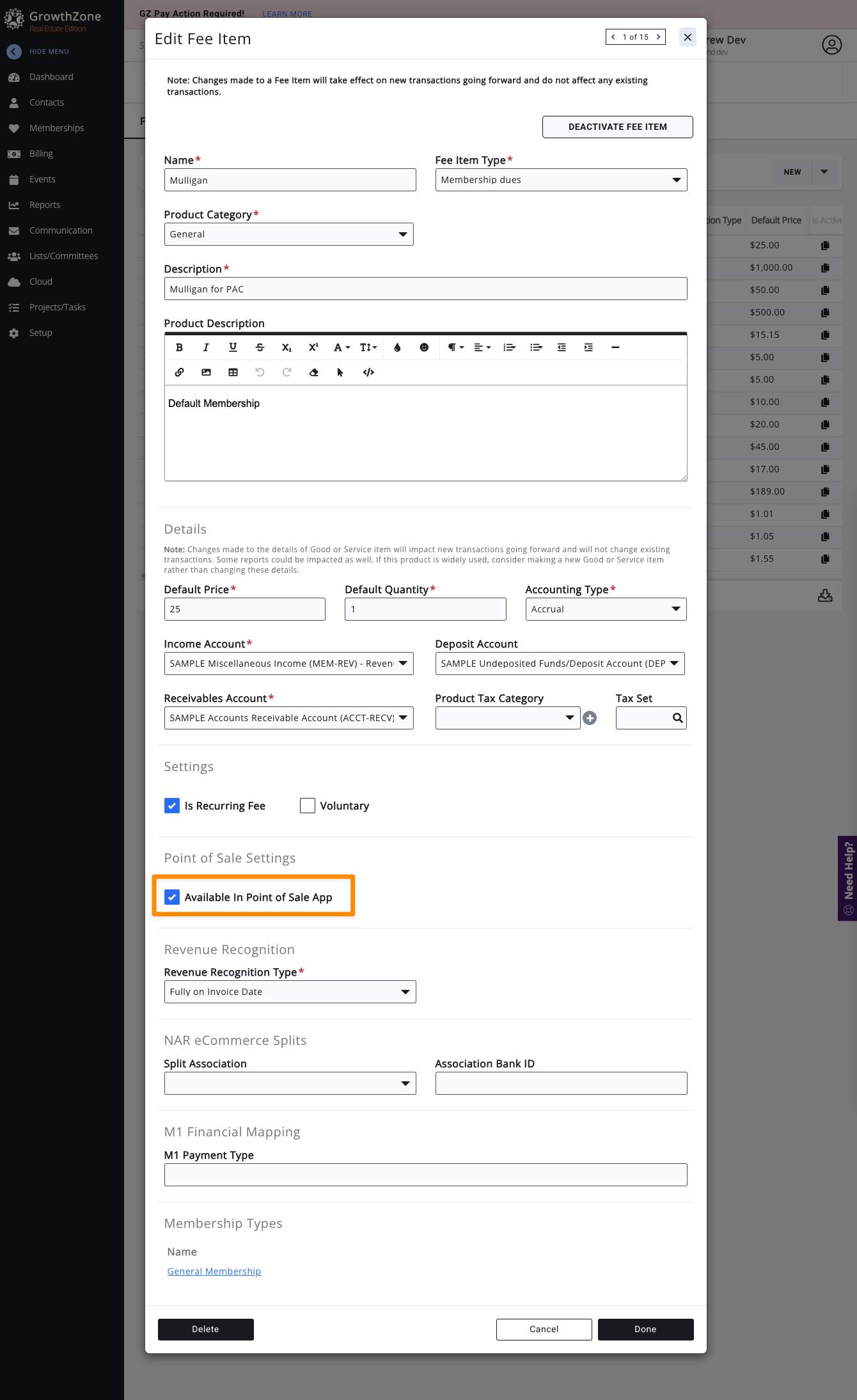
Any Fee Item can be used in the app. You can adjust the available Fee Items at any time. You may want to disable certain items that association staff only sell before a large event where you may have volunteers selling items. To mark a Fee Item for use in the app:
-
Go to Setup → Services, Products, and Commerce
-
Click on the name of the Fee Item you want to edit
-
Check the Available in Point of Sale App checkbox
-
Click Done to save your changes
If you immediately return to the GrowthZone Pay app after making this change you may need to force quit the app and re-launch it.If no fee items are marked for use in the GrowthZone Pay app, a message will appear in the app with a link to a help page(opens in a new tab).
Default Contact
By default, the app will record payments under the contact record for the staff user signed in to the app. If desired, you can set a default contact for all payments collected through the app. Customers that select this have typically used a contact for similar things in the past and have created a special contact named things like, Cash Payments, App Payments, etc...
To set a default contact for use in the app:
-
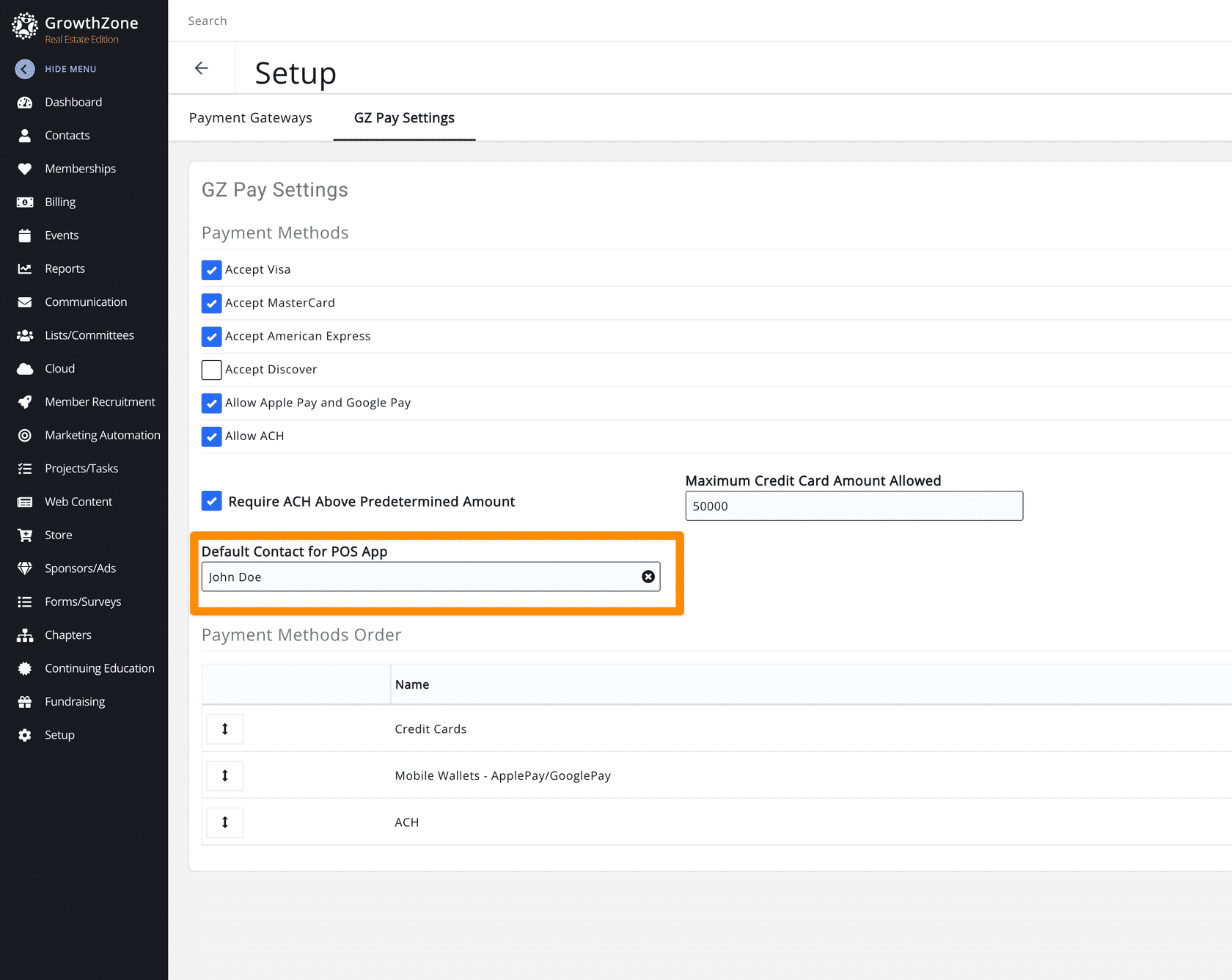
Go to Setup -> Finance -> Payment Gateways -> GZ Pay Settings
-
Enter the default contact's name in the Default Contact for POS App field
-
Select the correct contact from the dropdown list that appears