



 540
540
Overview
You can accept payments in the GZ Pay app on compatible cell phones or on cell phones and tablets with the Stripe M2 Reader. See the end of this article for a list of compatible cell phones.
M2 Reader
Use this link to order your card reader for the GZ Pay App:
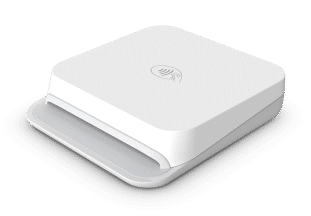
The M2 reader can accept payments via Tap to Pay, chip, or magnetic stripe. It connects to your cell phone or tablet via Bluetooth. It charges via USB-C.
Compatible Tap to Pay Devices
- iOS: iPhone XS or newer can all accept Tap to Pay with iPhone payments in the GZ Pay app
- Android: See the list of commonly-found compatible phones below. Other devices may be compatible as well. See this Stripe article for more information: Source.
- Other options:
|
Asus |
Zenfone 9, Zenfone 10, Zenfone 11 Ultra, Zenfone 12 Ultra, ROG Phone 6, ROG Phone 7, ROG Phone 8, ROG Phone 9 |
|
|
Pixel 6, Pixel 6a, Pixel 7, Pixel 7a, Pixel 8, Pixel 8a, Pixel 9, Pixel 9a, Pixel 10 |
|
Nokia |
G22, G42, G60, G400, X30, XR21 |
|
Honor |
70, 70 Lite, 80, 90, 90 Lite, Magic5, Magic6, Magic7, Magic8 |
|
Infinix |
Hot 30, Hot 40, Hot 50, Hot 60i, Zero 20, Zero 30, Zero 40 |
|
Motorola |
Edge 2023, G 2024, Edge 2024, G 2025, Edge 2025, Razr 40, Razr 50, Razr 60 |
|
OnePlus |
Nord 3, Nord 4, Nord 5, Nord CE3, Nord CE4, Nord CE5, Nord N30, 11, 11R, 12, 12R, 13, 13R |
|
Oppo |
A60, A77, A78, A98, Find X5, Find X6, Find X7, Find X8, Find X9, Reno8, Reno9, Reno10, Reno11, Reno12, Reno13, Reno14, Reno15 |
|
Samsung Galaxy |
A04s, A05s, A13, A14, A15, A16, A17, A23, A24, A25, A26, A33, A34, A35, A36, A53, A54, A55, A56, A73, S22, S23, S24, S25, S26 Ultra, Z Flip4, Z Fold4, Z Flip5, Z Fold5, Z Flip6, Z Fold6, Z Flip7, Z Fold7 |
|
Xiaomi |
12, 12S, 12T, 13, 13T, 14, 14T, 15, 15T, Redmi 12, Redmi 12C, Redmi 13, Redmi 13C, Redmi 14C, Redmi 15, Redmi Note 12, Redmi Note 13, Redmi Note 14 |
Related Articles
GrowthZone Pay App: Configure the App
GrowthZone Pay App: Configure your Fee Item(s)
GrowthZone Pay App: Configure your Default Contact
GrowthZone Pay App: Configure Your Payment Gateway
GrowthZone Pay App: Accepting Payments
GrowthZone Pay App: Paying Open Invoices

