The Goal: Generate a shareable link for a document stored in Cloud Drive so it can be distributed via email or other channels without sending the file as an attachment.
Before You Begin:
- The document must already be uploaded to Cloud Drive.
- Best practice in emailing documents is to provide a link rather than an attachment.
Step-by-Step Instructions
Generate a Sharing Link
- Go to Home, My workspace section, click Cloud Drive.
- Click the document for which you want to create a sharing link.
- On the Edit Sharing screen, click the Generate Sharing Link check-box.
- (Optional) If you wish to secure this file and only allow access to those who have a password, enter a Password. If a password is entered, the user will be prompted to enter it when they click the sharing link.
- Click Done. The Cloud File Sharing dialog box will be displayed. Copy the link and distribute as needed (for example: embed in an email).
Note: You need to perform the sharing step only once. Each time you wish to share this document, simply click on Sharing to copy the link. Documents for which a sharing link has already been created will be identified by an arrow icon.
Share the Link Directly via Cloud Drive Email
- Go to Home, My workspace section, click Cloud Drive.
- Click the link for the document you wish to email.
- Click Sharing.
- On the Edit Sharing… screen, enter the Contact name and the contact’s Email.
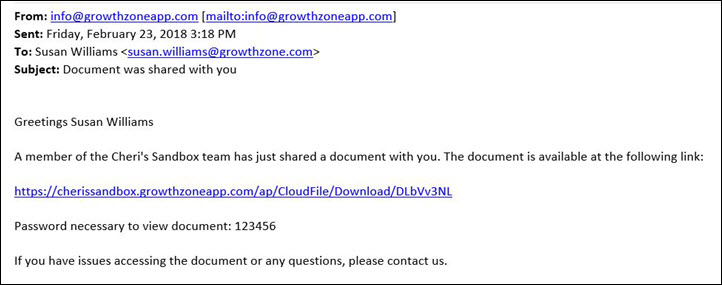
- Click Done. An email with the sharing link will be sent to the contact.
Common Pitfalls
- Password-protecting after sharing: If you add a password after the link has already been shared, recipients with the old link will be prompted for the password they may not have. Communicate the password separately if you add one retroactively.
- Sharing link not appearing: Make sure you have clicked Generate Sharing Link and clicked Done to save the setting before attempting to copy the link.