Payment plans allow for a membership to be billed outside of traditional payment frequencies (annual, quarterly, etc.). This functionality allows you to create one or more custom payment frequency that allows invoices to be generated on a customer designated schedule with defined dates and defined amounts per invoice for each frequency.
NOTE: Payment Plans must be enabled by GrowthZone support team
The following use cases are supported:
- Existing Members: Prior to renewal, during a set eligibility period, existing members can sign up for a special payment plan.
- New Members: New members can choose a payment plan from the membership application OR staff can select the payment plan when adding a membership from the back office.
How it Works
- Prospective members will have the option to select a payment plan when applying on line. Only eligible payment plans will be displayed on the membership application.
- There will be a defined period when a payment plan can be opted into by the members
- Payment plans will be defined at the membership type and level
- A payment plan can be selected by a staff person from the back office. The former frequency selection is now a combination of frequency and plans.
PREREQUISITES:
- Payment Plans must be enabled by GrowthZone support
-
Fee Items associated to the payment plan MUST be set for Cash accounting.
-
Membership Types MUST be setup for a 12 month term and a Fixed Renewal date. See Setting Up Membership Types for further information.
-
Pricing must be setup for the Membership Type. As members will be able to opt in to a payment plan, if they choose not to the membership must be setup with pricing for the standard frequencies you wish to offer. See Add Pricing to a Membership for further instructions.
-
If you wish to use the payment plans on the Membership Application, you must be use Membership App Version 2. See Global Membership Settings to enable V2.
|
|
IMPORTANT: Payment dates are set as fixed dates not relative. This means the payment plan will need to be reviewed and updated each year |
Create Payment Plan(s) for your Memberships
- Select Setup in the left-hand navigation panel
- Select Types in the Memberships section.
- Click the Manage Payment Profiles icon in the actions column for the desired membership. NOTE: This icon will only be displayed if you have setup the membership type with a fixed renewal date and a 12 month term.
- Click the orange plus sign to add a payment plan.
- Define the Eligibility Start and Eligibility End for this payment plan. These dates define when this payment plan may be selected by your members. For example, if the start date is July 1, 2021 and the end date of August 30, 2021, this plan would only be available for selection during these dates. NOTE: If you offer payment plans throughout the term of the membership, you may need to setup multiple payment plans.
- Define the number of payments included in this plan. A payment plan can have up to 12 payments. Once the number of payments has been configured, the appropriate number of columns for payments will be displayed.
- If the membership has levels, select the desired level.
- Click the Show on Application check-box to include this payment option on your application. The plan will only display during the eligibility dates. Caution: When including payment plans on the membership application you need to ensure that the eligibility dates and how you have invoicing setup for the plan meet your financial requirements.
- For each payment option, enter the date the agent will be invoiced.
- For each payment option, enter the amount the agent will be invoiced for each Fee Item assigned to this membership. NOTE: Fee Items must first be assigned under the membership pricing.
- Click Done.
Repeat steps 4 - 10 above to add additional payment plans.
Example:
Membership is 12 month renewing everyone January 1. The following fees are included in the membership:
National Dues: Total must be paid up front $150
State Dues: Total must be paid up front $125
Association Dues: Total $120 $10 per month
MLS Dues: Total $240 $20.00 per month
Assign Membership with Payment Plan to an Agent
When adding a new membership from the back office, payment plans will be available as a frequency option.
NOTE: The system will use the first bill date in the plan to setup scheduling billing. For example: If the membership is added on 8/27/21, but the plan's first invoice is scheduled for 10/1/2021, the system will not create an invoice. The invoice will be created when you run your upcoming billing for October. The frequency for the membership will be set to custom.
Allow Selection of Payment Plan on Membership Application
You can configure your payment plans to be included on your membership application. In this scenario it will be important to accurately define your eligibility dates and your invoicing dates. Only payment plans within eligibility dates will be displayed on the membership application, and you would manually create the first invoice which would be dated based on the first installment in the payment plan.
Include the payment plan on your membership application: When creating your payment plan you have an option to enable the Show on Application option. By enabling this payment plans will be displayed on the application during the eligibility period.
When a contact completes the application they will be able to view the payment plan option along with standard frequency options. If they choose the payment plan option they will simply submit the application without payment required.
When you approve the application you will note that an invoice has not been created automatically. The invoice will be created when you run upcoming billing for the month in which the first installment payment is dated or you can manually create the invoice at any point. You need to clear define your business processes for managing activation of memberships if you are allowing new members to select this option from your application.
Provide Payment Plan Options when Renewing Members
Within in the Memberships module, you can use the Renewals tab to send emails notifying your members that their membership is up for renewal. Even if you are not offering payment plans this function is available as an efficient way to notify your members of upcoming renewals! IMPORTANT! Remember that you have specific eligibility periods for your payment plans. In order for a member to select a payment plan, they must have received the email during that eligibility period. You will want to setup your processes accordingly.
The Payment Plan Invitation Email Template should be used for this notification, as it includes a link to a landing page on which your members can choose their renewal option.
- Click Membership in the left-hand navigation panel.
- Click the Renewals tab.
- Filter the list to the desired membership type(s) by clicking the Customize Results option.
- Click Send Renewal Email. This will allow you to send an email to all those on your list as you have it filtered.
- Select the Payment Plan Invitation Email Template. NOTE: You can edit this email template to suit your business needs, and include your payment plan details.
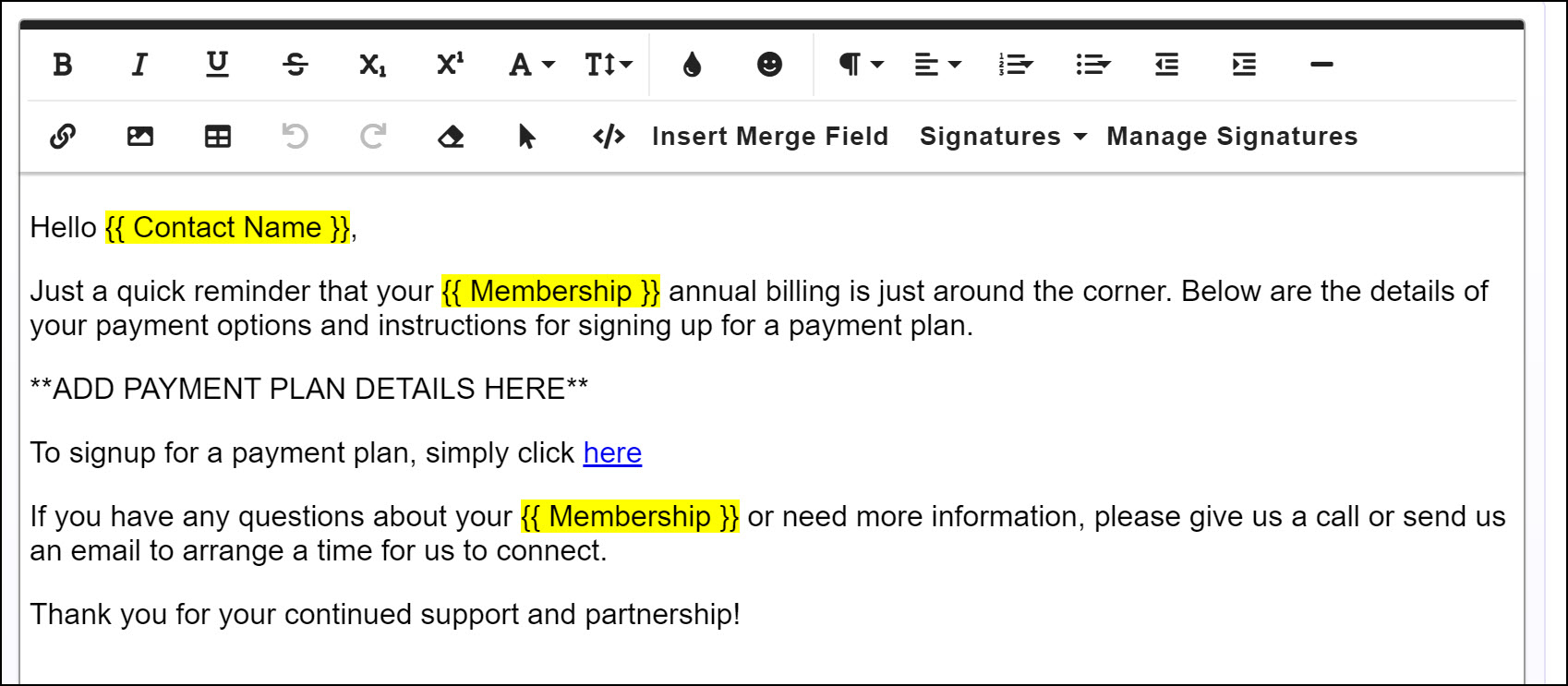
- Send the email as described in Send an Email.
A link within the email will bring the member to a landing page providing options available for their membership renewal.
The member may:
- Renew Now: If this option is selected, the existing frequency will be used to renew the membership. The member will be prompted to enter payment information.
- Renew now and pay later (invoice me): The member can choose the frequency at which they wish to pay. Options available are those that you defined when setting up standard pricing for your membership type. On submit, the system will automatically setup the billing schedule for the member.
- Payment Plan: If selected, the payment plan for this membership type will be displayed. On submit, the system will automatically setup the payment plan for the member.
Identify members on a payment plan who have not made a renewal choice
Should members, previously on a payment plan, not respond to your renewal email, you can identify those members and renew their memberships.
Scheduled billing for members who are on a payment plan will end after the last installment has been made. This will result in the member not having a Next Bill Date, therefore would not have a next bill date. You can filter the renewals tab to view those without a Next Bill date, then renew their memberships:
- On the Renewals tab, filter the list to those members without a Next Bill Date.
- Click the Renew Memberships button.
- Choose the frequency that you wish to set for this renewal. All frequencies, including the payment plan option, will be available.
- Click Save. Clicking Save will immediately create a new membership activation and scheduled billing items for the given membership.